
 Sebastian Stokkendal
In This Article▼
Integrating SMS marketing with your Shopify store is one of the most effective ways to boost sales and customer engagement. This step-by-step guide shows you how to set up SMS using Messaro.
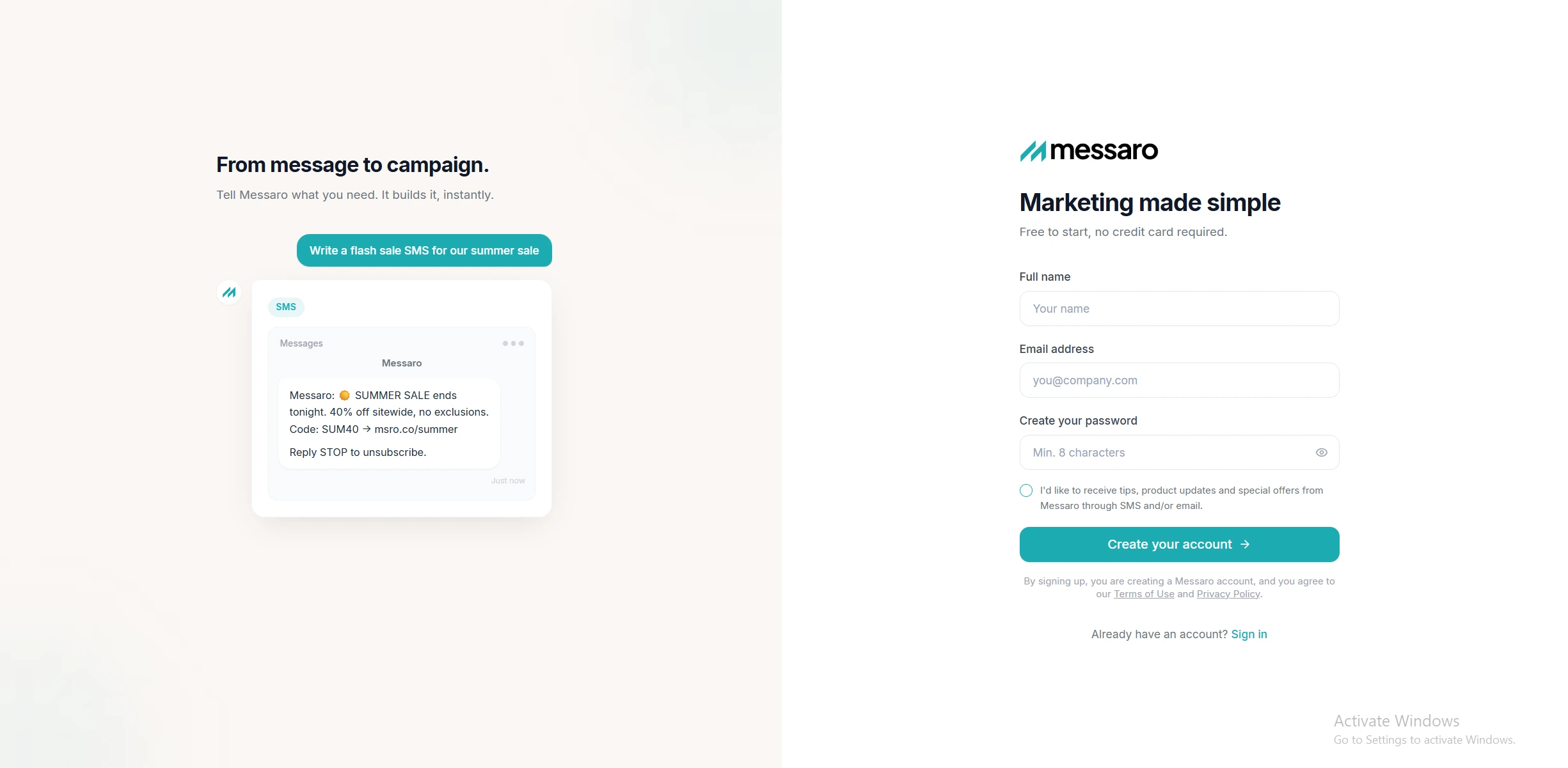
Step 1: Create Your Messaro Account
- Visit app.messaro.com
- Sign up for a free account
- Complete your business profile
- Verify your email address
Step 2: Set Up Your Phone Number
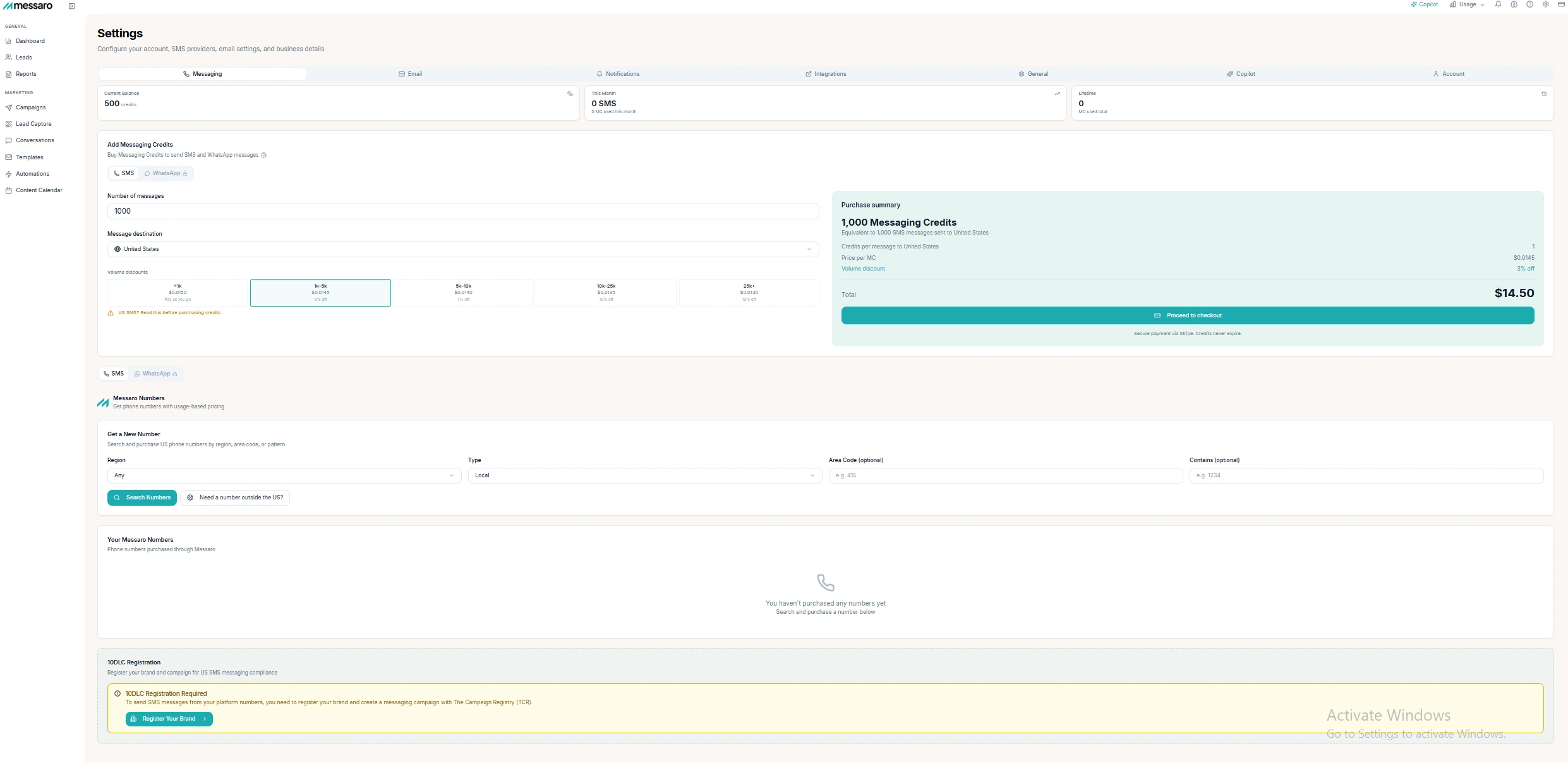
- Navigate to Settings → Phone Numbers
- Choose between 10DLC, toll-free, or short code
- Complete 10DLC registration (required for US)
- Register your SMS campaign use case
Step 3: Connect Shopify
- Go to Integrations in your Messaro dashboard
- Click "Connect Shopify"
- Enter your Shopify store URL
- Authorize the connection
- Select which data to sync (orders, customers, products)
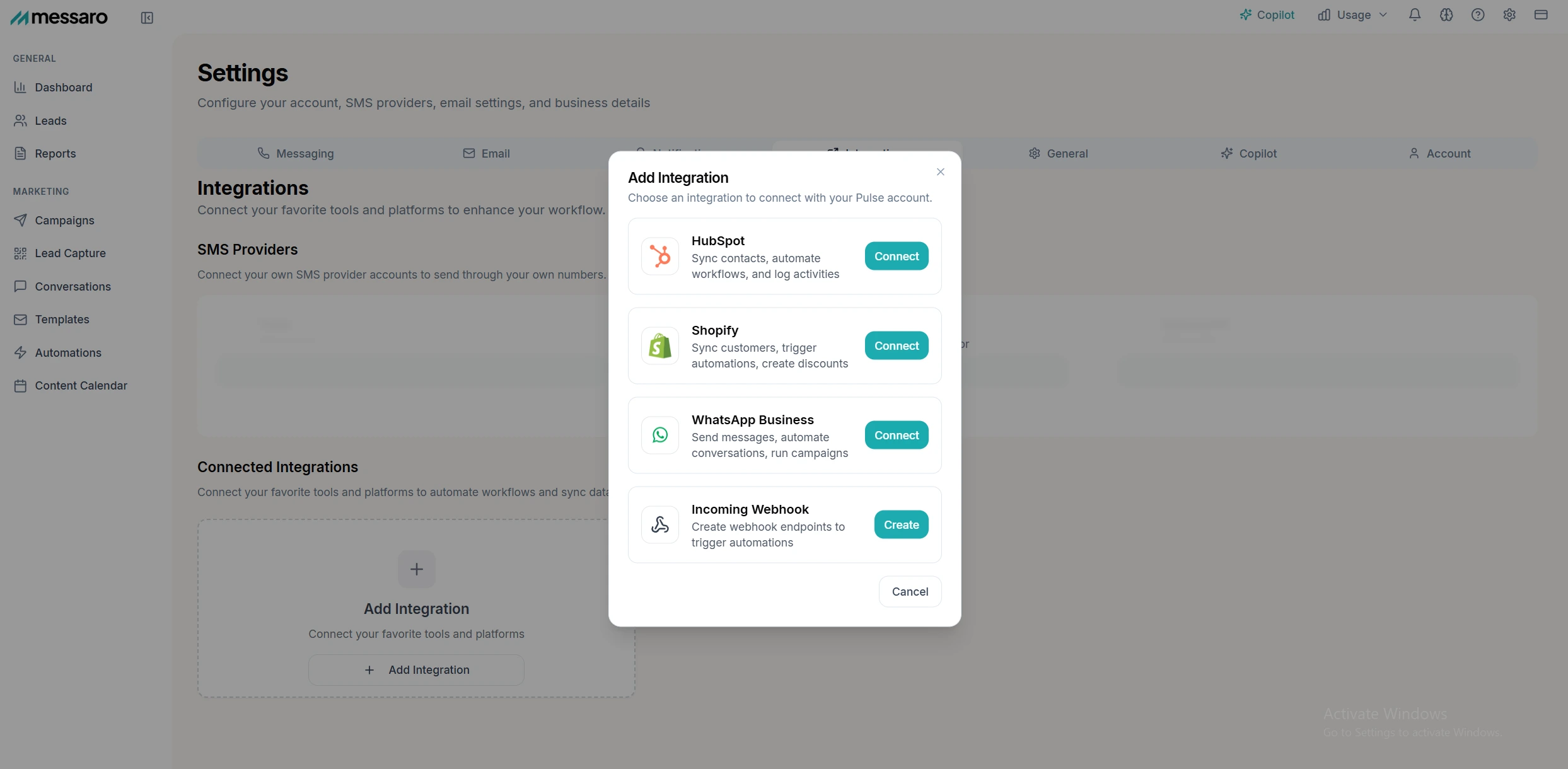
Once you Connect to your Shopify or e-commerce platform, you can start building your subscriber list and launching campaigns right away.
Step 4: Set Up Opt-In Collection
You need consent before texting customers. Options include:
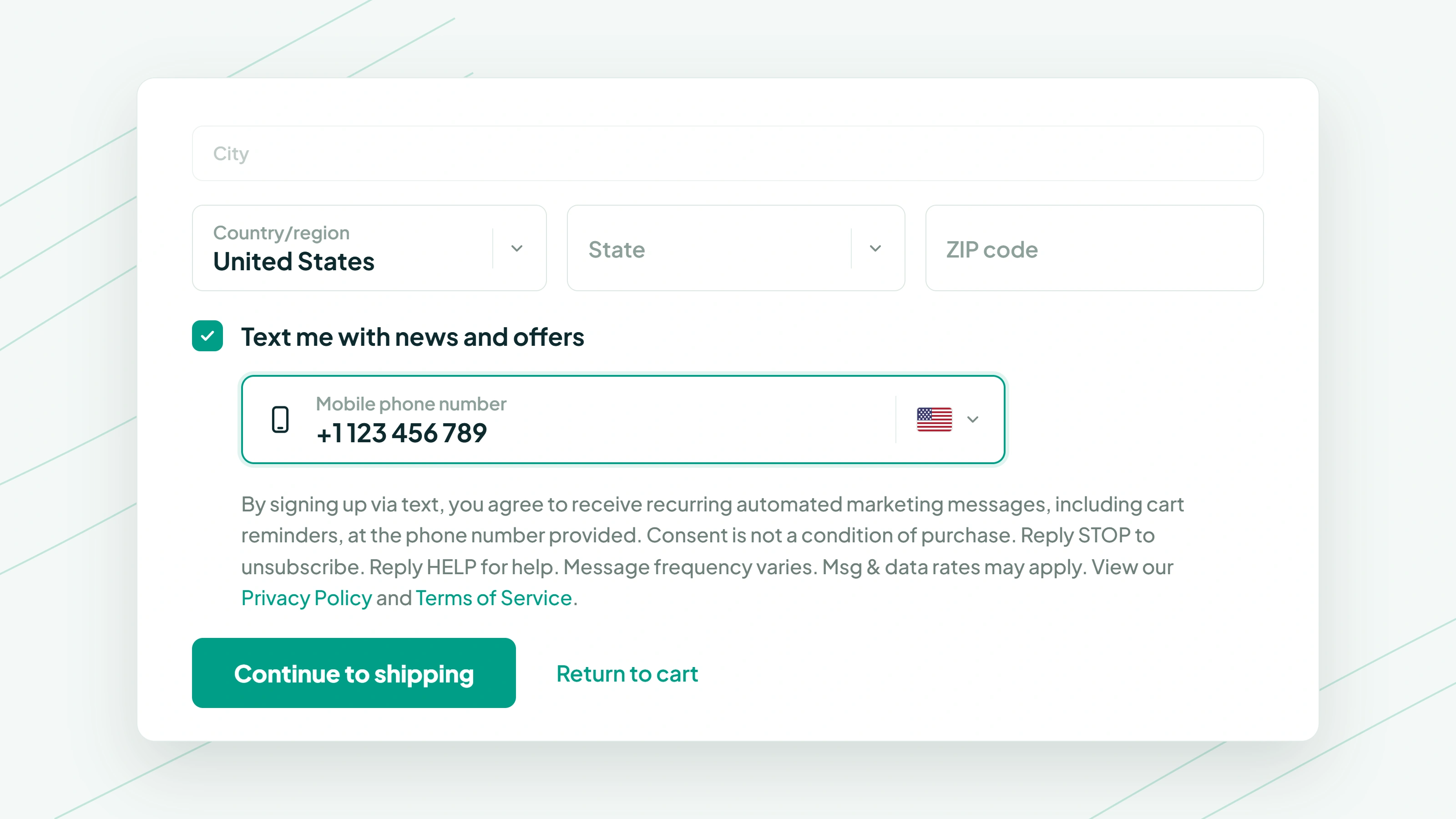
Checkout Opt-In
Add an SMS checkbox to your Shopify checkout to collect consent during purchase.
Pop-Up Forms
Create SMS sign-up pop-ups offering discounts for new subscribers.
Keyword Opt-In
Promote a keyword (like "JOIN" to your number) on your website and marketing.
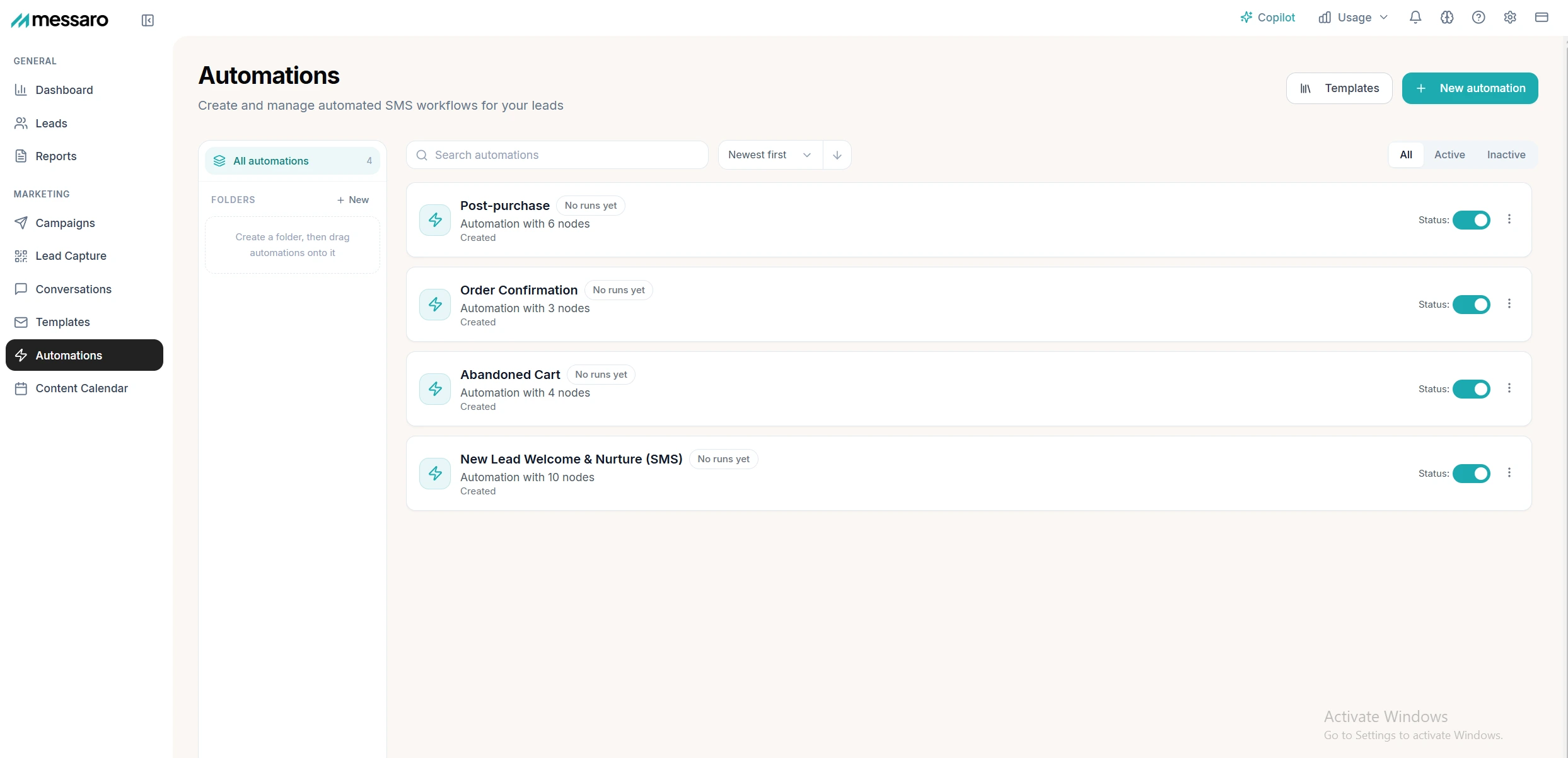
Step 5: Create Automated Flows
Set up these essential automations:
Welcome Series
Send a welcome message with a discount code to new subscribers.
Abandoned Cart Recovery
Automatically text customers who left items in their cart.
Order Confirmation
Send order and shipping updates via SMS.
Post-Purchase Follow-Up
Request reviews and promote related products.
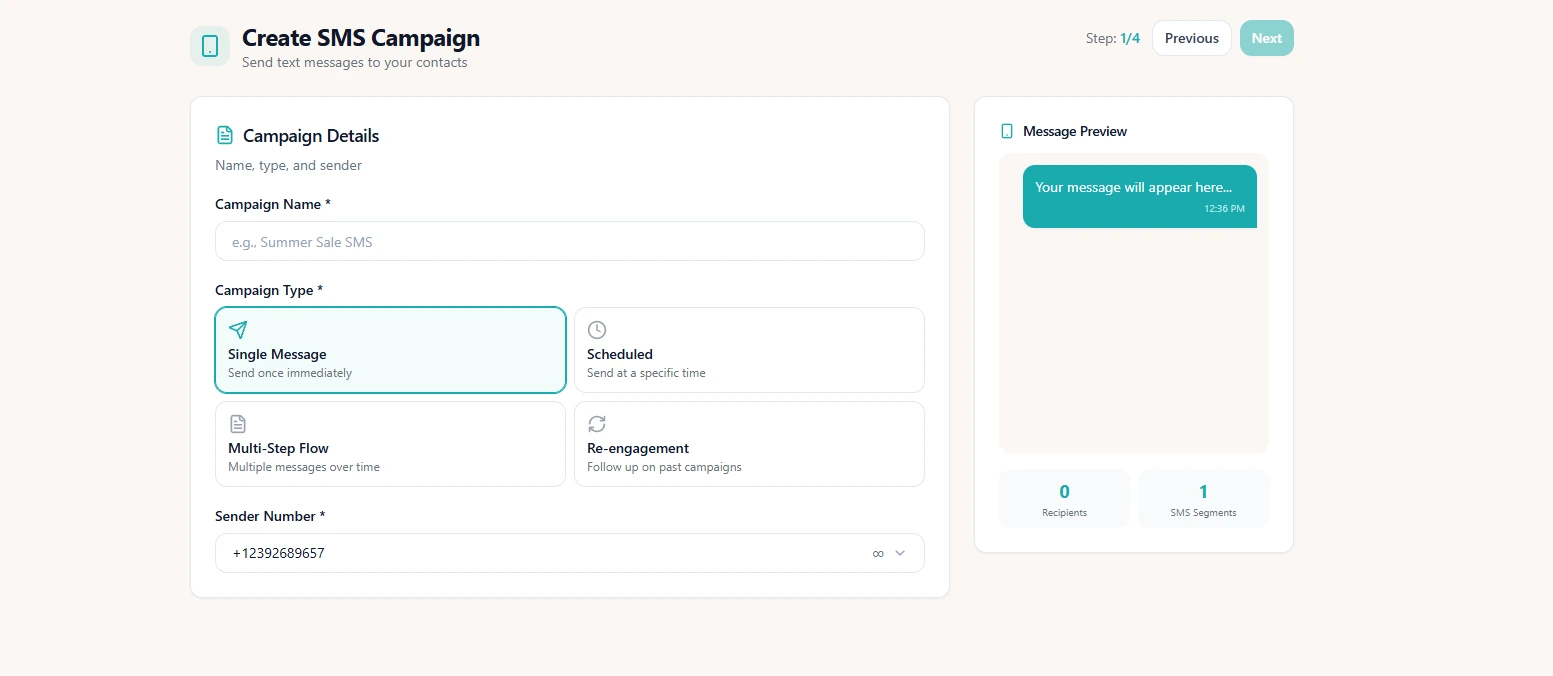
Step 6: Launch Your First Campaign
- Go to Campaigns → New Campaign
- Select your audience segment
- Write your message (include business name and opt-out)
- Schedule or send immediately
- Monitor results in real-time
Best Practices for Shopify SMS
- Personalize with customer name and order details
- Include product images with MMS
- Time messages around purchase behavior
- Coordinate SMS with email campaigns
- Track revenue attribution per message